User Guide
Integrations
An integration is a named HTTPS endpoint on your server that Webhook Guard forwards webhook events to. You can have multiple integrations, each subscribed to different event topics.
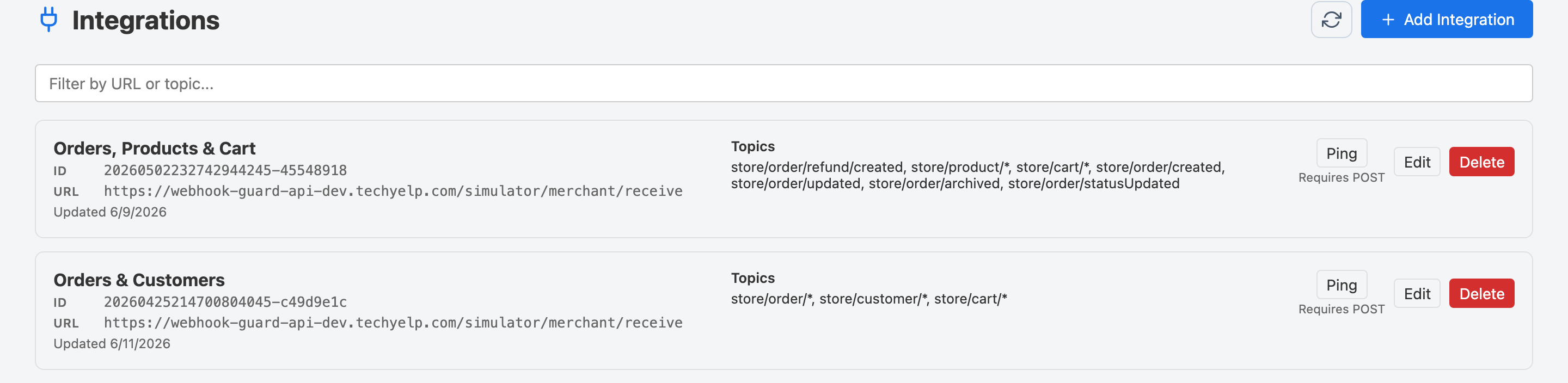
Adding an Integration
- Click Integrations in the top navigation.
- Click the Add Integration button in the top-right corner.
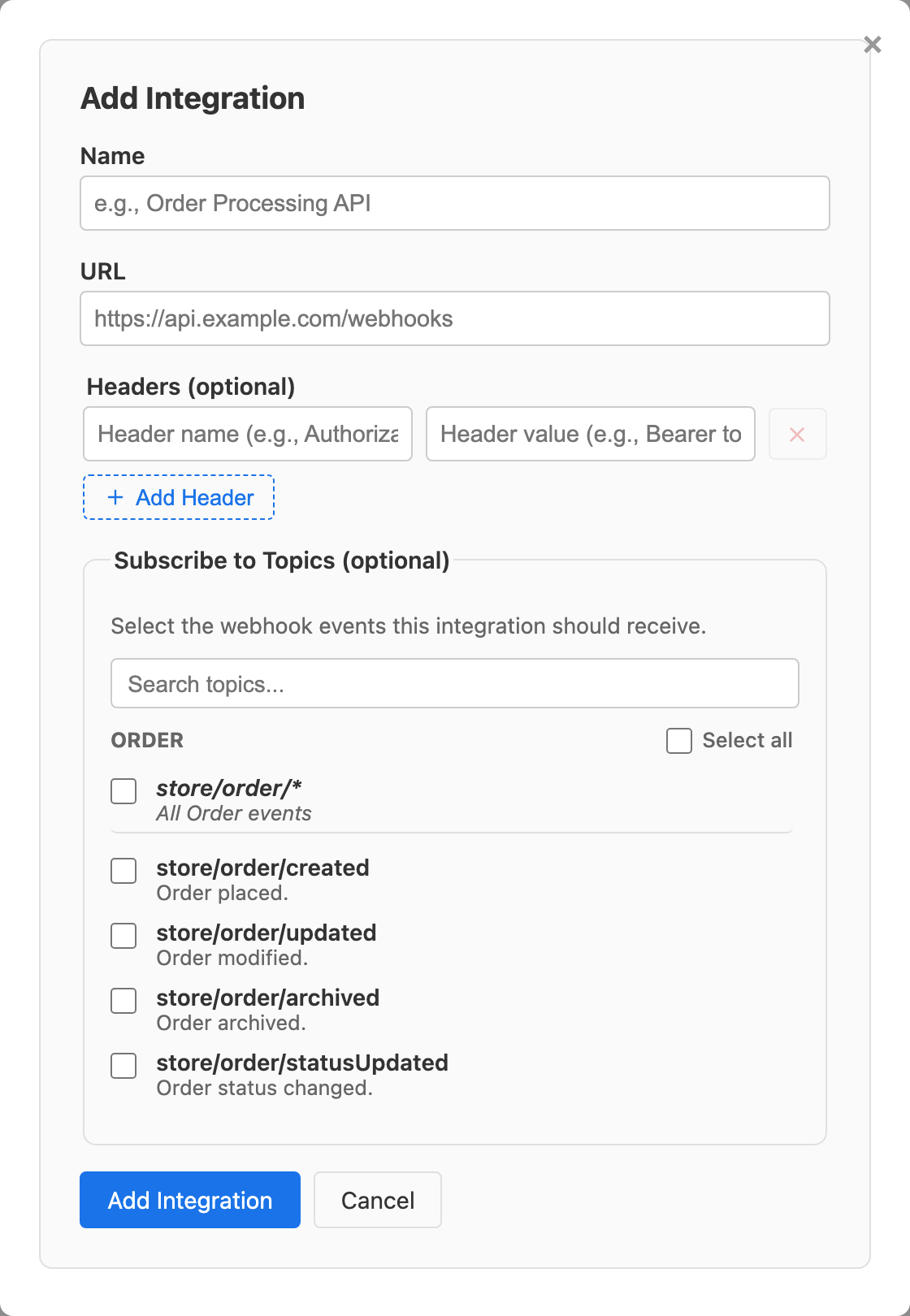
- Fill in the form fields:
- Name — A descriptive label (e.g. "Order Processing API").
- URL — The HTTPS URL of your server endpoint that will receive the forwarded events.
- Headers (optional) — Any HTTP headers your endpoint requires, such as an API key, a tracing ID, or a custom token. These headers are sent with every forwarded request.
- Subscribe to Topics (optional) — Select the webhook event types this integration should receive. Webhook Guard registers and manages the underlying subscriptions with your platform automatically.
- Click Add Integration.
When you select topics, Webhook Guard automatically registers the corresponding
webhook subscriptions with your platform — no manual setup in your platform's
dashboard needed.
Your endpoint must be reachable over HTTPS.
Plain HTTP endpoints are not supported.
Editing an Integration
- On the Integrations page, find the integration you want to change.
- Click the Edit (pencil) button on the integration card.
- Update any fields — name, URL, headers, or subscribed topics.
- Click Save Changes to apply the changes.
When you update the topic list, Webhook Guard automatically adds or removes the
corresponding webhook subscriptions on your platform — no manual action needed.
Deleting an Integration
- Click the Delete (trash) button on the integration card.
- A confirmation dialog appears. Click Delete to confirm, or Cancel to go back.
Deleting an integration removes all its webhook subscriptions from your platform.
Any in-flight events targeting that integration will no longer be delivered.
Testing an Integration with Ping
After adding or editing an integration, use the Ping action to verify your endpoint is reachable before live events arrive:
- Find the integration on the Integrations page.
- Click the Ping button.
-
Webhook Guard sends a test HTTP
POSTrequest to your endpoint with a small test payload. The response status code and latency are shown inline on the card.
A 200 response confirms your
endpoint is reachable and responding correctly. Any other status indicates a
potential issue with your server configuration.